
You’re in the middle of a report and the “e” key stops responding. Or every space you type turns into two. For anyone who writes for a living, a MacBook keyboard not working properly brings the day to a halt, but a surprising number of these problems are settings, not broken parts.
Quick answer: If your MacBook keyboard is not working, restart first, then check Accessibility settings like Slow Keys and Mouse Keys, and confirm the right input source is selected. If keys still fail, stick or repeat, the cause is usually debris, liquid or a worn keyboard, and it needs a hardware check.
Pin down the symptom first
When you find your MacBook keyboard not working, different symptoms point to different causes:
- Whole keyboard dead, trackpad working: often a setting, a software freeze, or a connection fault inside.
- A few keys dead: usually debris under the keys or liquid damage.
- Keys typing twice or not at all: a classic sign of dust in older butterfly-style keyboards.
- Wrong characters appear: often the wrong keyboard layout or input source.
- Keys feel raised, uneven or stiff: can mean a swelling battery underneath.
- Backlight off: usually a brightness setting or the light sensor.
Rather have it checked? We service MacBook Air, MacBook Pro and Windows laptops in Albany. Call (518) 330-9899
MacBook keyboard not working? Eight fixes to try, in order
1. Restart the Mac
Apple menu → Restart. A frozen app or a stuck system process can make the keyboard look dead.
2. Test at the login screen
After restarting, type your password at the login screen. If the keys work there but not once you’re logged in, the problem is likely a setting or an app, not the hardware.
3. Check Slow Keys and Sticky Keys
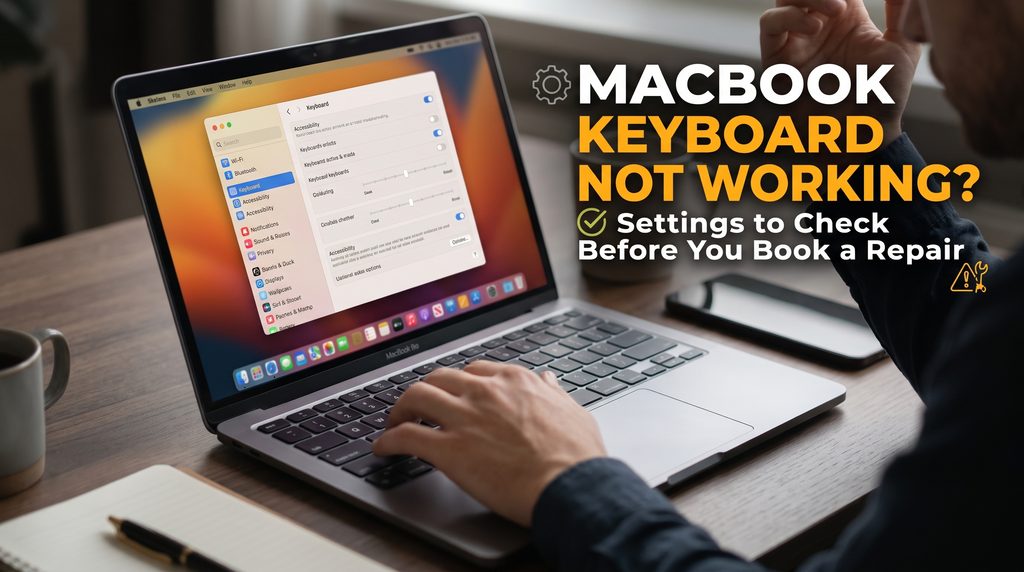
Open System Settings → Accessibility → Keyboard. Slow Keys makes the Mac ignore quick presses, which feels like a MacBook keyboard not working at all. Sticky Keys changes how Shift, Command and Option behave. Turn both off to test.
4. Turn off Mouse Keys
In System Settings → Accessibility → Pointer Control, check Mouse Keys. When it’s on, some letter and number keys move the pointer instead of typing.
5. Check the input source
Go to System Settings → Keyboard → Text Input → Input Sources. If a different language or layout was added, some keys will type unexpected characters. Remove the ones you don’t use.
6. Use the Keyboard Viewer
Turn on Show Input menu in menu bar in the Input Sources settings, then choose Show Keyboard Viewer from that menu. Press each problem key and watch whether it lights up on screen. If it doesn’t, the Mac isn’t receiving the press.
7. Disconnect Bluetooth keyboards
A paired external keyboard, or a stuck key on one in a drawer, can confuse things. Turn off Bluetooth briefly and test again.
8. Clean it the safe way
Debris under the keys is common, especially on butterfly keyboards. Apple’s support site describes a compressed-air method: hold the Mac at about a 75-degree angle, spray across the keys in a left-to-right pattern, then rotate and repeat. Don’t pry keycaps off; they break easily.
Butterfly vs Magic Keyboard: which do you have?
Apple used a thin butterfly keyboard on many MacBook Pro and MacBook Air models from around 2016 to 2019. It was prone to dust getting trapped under the keys, causing sticking, double letters and dead keys.
Newer MacBooks, from the 2019 16-inch MacBook Pro and the 2020 models onward, use the Magic Keyboard with a scissor mechanism. It’s much more reliable, so when a newer Mac has a MacBook keyboard not working, liquid, physical damage or a battery problem is more likely than dust.
Not sure which you have? Butterfly keys feel very shallow, almost flat, with little travel. Magic Keyboard keys have a more noticeable press.
When a MacBook keyboard not working isn’t the keyboard’s fault
Two hardware problems often show up as keyboard trouble.
Liquid. Even a small splash can make keys stop working days later as residue dries or corrosion starts. If anything was spilled recently, read our guide on spilled water on MacBook and avoid using the Mac until it’s checked.
A swelling battery. On MacBooks, the battery sits directly under the keyboard and trackpad. If it swells, it pushes up from below: keys feel raised or stiff, the trackpad gets hard to click, and the case may stop sitting flat. Stop charging it and bring it in. Our post on the MacBook battery service recommended warning covers battery wear and when replacement makes sense.
Working around it for now
If you’ve got deadlines, a temporary setup keeps you going:
- plug in or pair an external keyboard; we stock options with our accessories
- use the on-screen Keyboard Viewer for the odd missing key
- set up text replacements for a dead letter in an emergency
These are stopgaps. A failing keyboard usually gets worse, not better.
How a MacBook keyboard repair works
On many MacBooks, the keyboard is built into the top case, the metal section that also holds the trackpad area and, on many models, the battery. That makes a full keyboard replacement a bigger job than on most Windows laptops.
Depending on what we find, the fix might be:
- cleaning under the affected keys
- replacing a single damaged key or keycap
- cleaning liquid residue from the keyboard and connectors
- replacing the keyboard or top case assembly
- replacing a swollen battery that’s pressing on the keyboard
We’ll explain which applies to your Mac before any work starts.
For people who type all day
Whether you’re drafting briefs near Albany Law School, writing reports from a Center Square apartment, or running a home office in Westmere or Voorheesville, your keyboard takes more abuse than any other part of the Mac. A few habits help:
- eat away from the laptop, or at least away from the keys
- close the lid when you’re not using it, so dust and crumbs stay out
- keep drinks on a separate surface
- back up regularly, so a repair never means lost work
When to bring it in
Bring your MacBook to MT Phone Fix Planets at 232 Washington Ave, Albany, if the MacBook keyboard not working problem survives the settings checks, if keys feel raised, or if there’s been any liquid. We’re open Mon–Sat 10 AM – 9 PM, Sun 10 AM – 8 PM.
Walk in, see our repair services, or contact us with your model and which keys are affected.
Frequently asked questions
Why is my MacBook keyboard not working but the trackpad is?
It can be a setting like Slow Keys or Mouse Keys, a frozen app, or a hardware fault. Restart and test at the login screen to narrow it down.
Why does my MacBook type double letters?
On 2016 to 2019 butterfly keyboards, dust under the key is the usual cause. Compressed air sometimes helps; if not, the key or keyboard needs service.
Can I replace just one MacBook key?
Sometimes a single keycap or key mechanism can be replaced. If the problem is liquid or the keyboard itself, a larger repair may be needed.
Can a battery cause a MacBook keyboard not working properly?
Yes. A swelling battery sits right under the keyboard and can push keys up so they feel stiff or stop registering. Stop charging it and get it checked.
Should I pop the keys off to clean them?
No. MacBook keycaps and their clips are fragile and break easily. Use compressed air, or bring it in for a proper clean.
Keep reading
Laptops & MacBooks
MacBook Screen Flickering or Showing Lines? How to Tell Software From Hardware
A flicker, a line or a strange glow at the bottom of the screen can be a setting or a failing part.…
Laptops & MacBooks
Laptop Hinge Broken or Cracking? Stop Opening It Until You Read This
A creak, a gap at the corner, a screen that won't stay up. Hinge problems get worse fast, but caught early they're…
Phone Problems
iPhone 16 Problems: Camera Control, Battery Drain, Frozen Touch and Cracked Screens
The Camera Control button zooms on its own, the battery dips faster than it should, or the glass finally cracked. Here's what's…